
Feature 01
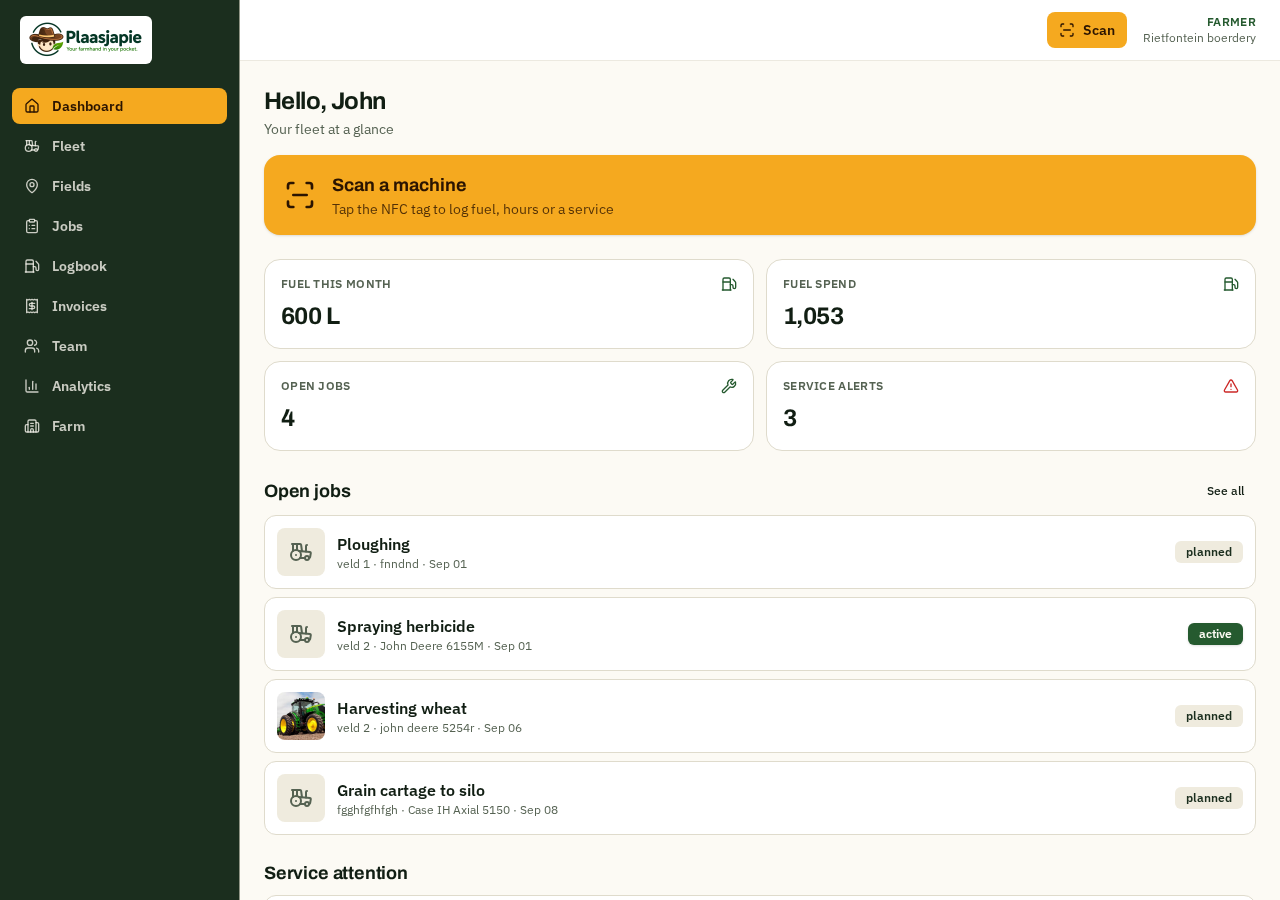
Dashboard — your fleet at a glance
The first screen after sign-in shows what matters today: fuel used this month, total spend, open jobs and any machine due for service.
- See fuel volume and spend for the current month at a glance.
- Track open jobs and service alerts without digging through menus.
- Tap the Scan tile to jump straight to NFC / QR logging.
- Designed for both office dashboards and mobile browsers.
Feature 02
Fleet — machines, photos and tags
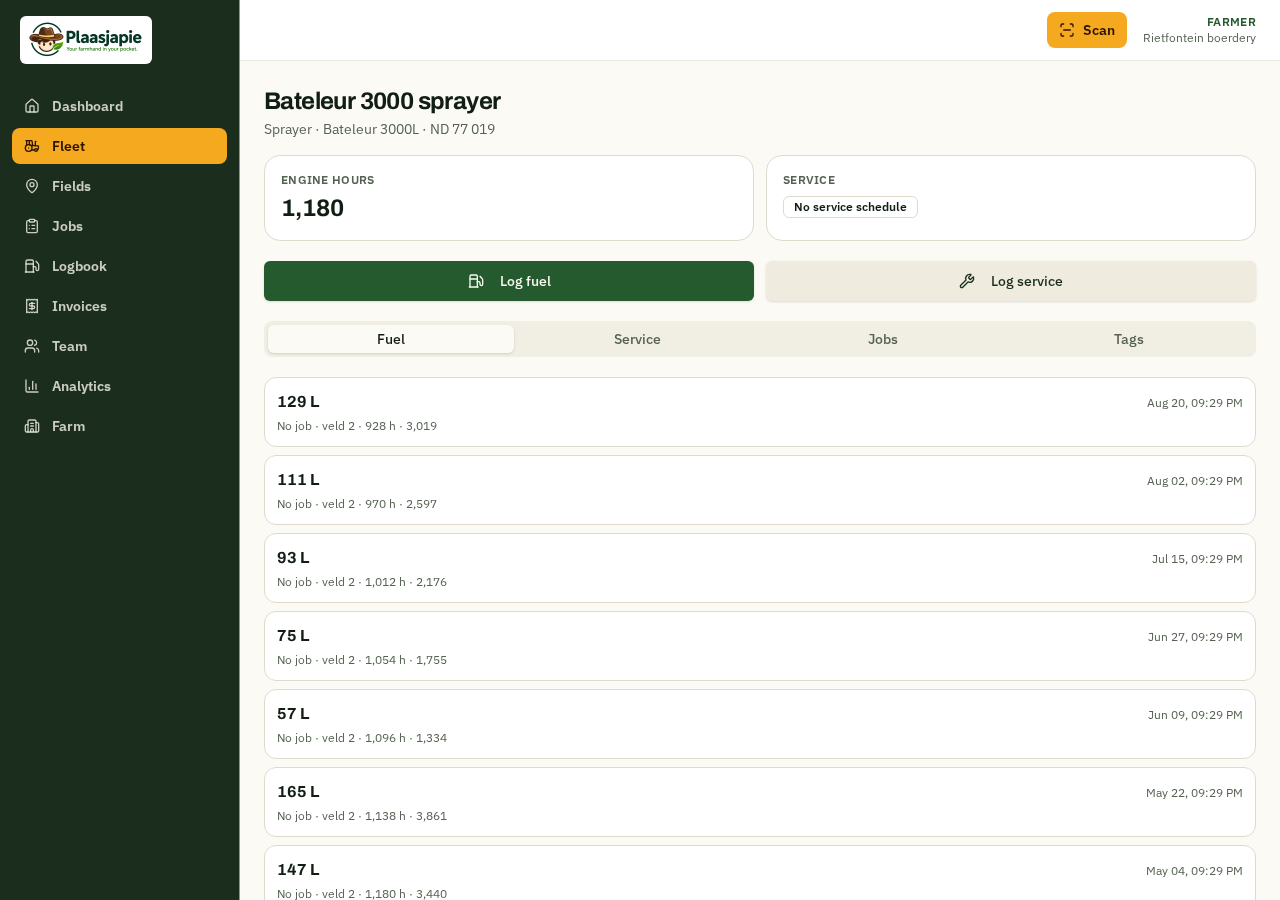
Add every tractor, sprayer, harvester and bakkie once. Attach a photo, record engine hours and generate a unique NFC / QR tag for each machine.
- Add make, model, registration, tank size and service interval.
- Upload a photo so drivers recognise the right machine.
- Generate a unique tag ID and print or share the sticker.
- Re-print, re-share or re-write tags any time from the machine page.
Feature 03
Machine details — history in one place
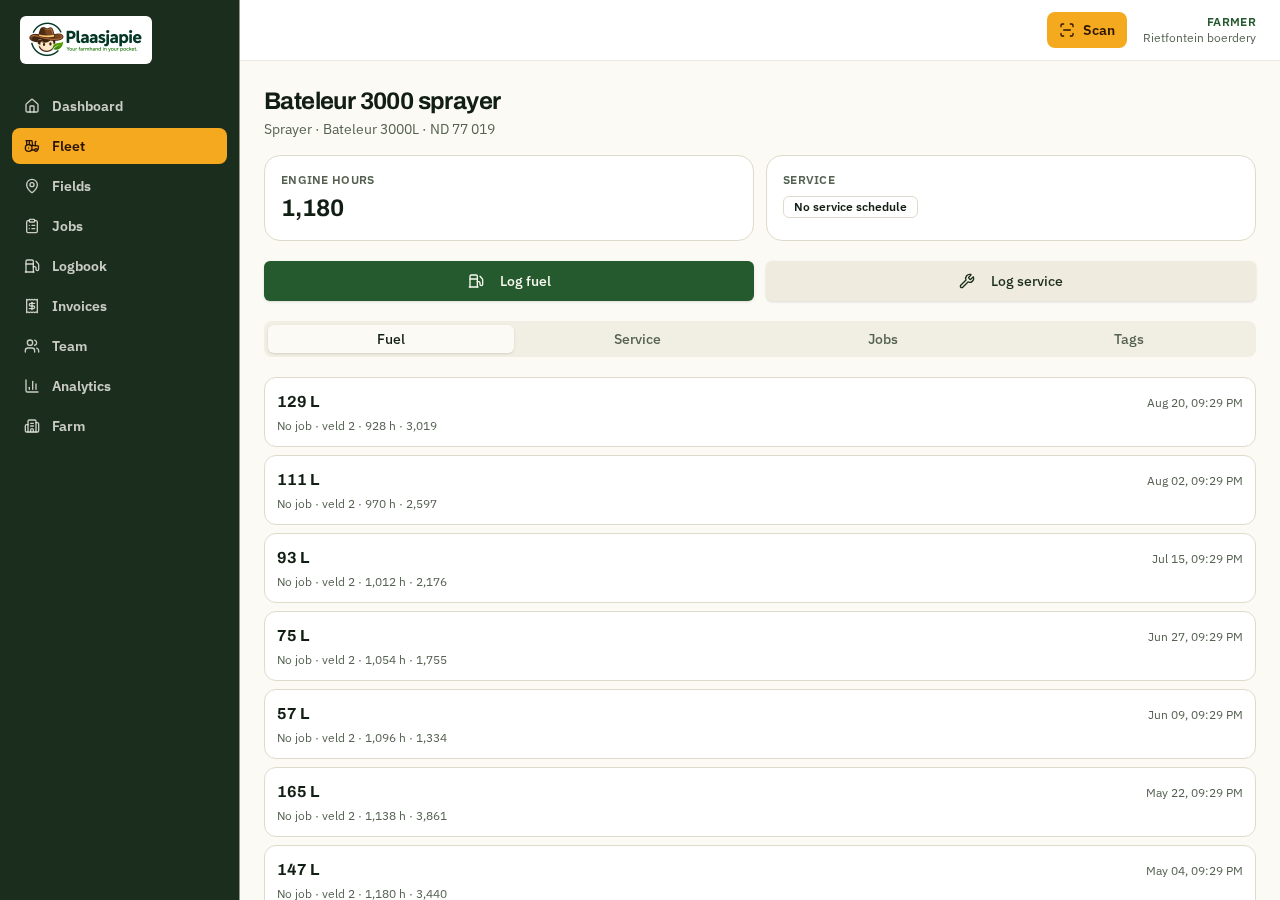
Open any machine to see its full story: fuel logs, service records, linked jobs and every tag registered to it.
- Log fuel or a service directly from the machine page.
- Review litres, hours and cost per fill over time.
- See upcoming and past service in one tab.
- Manage tags: generate, register, share or remove them.
Feature 04
Fields — map every land
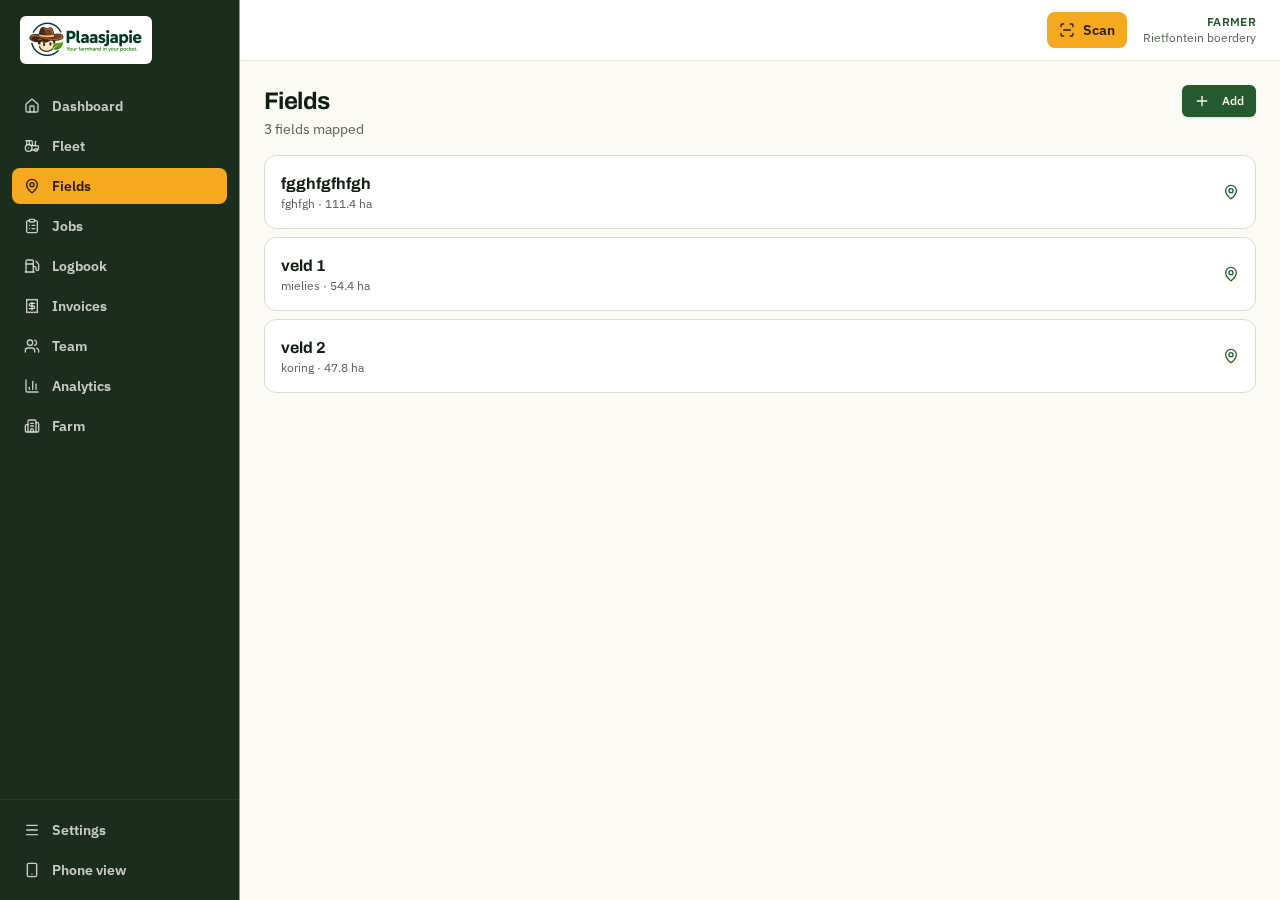
Draw field boundaries on the map so costs can be tied to actual hectares. Search by town or coordinates, trace an outline, or drop a circle and drag it to size.
- Search a location and the map pans straight there.
- Draw a circle with a draggable radius handle.
- Drop markers to outline irregular lands and move corners later.
- Enter hectares manually; Plaasjapie calculates litres per hectare from it.
Feature 05
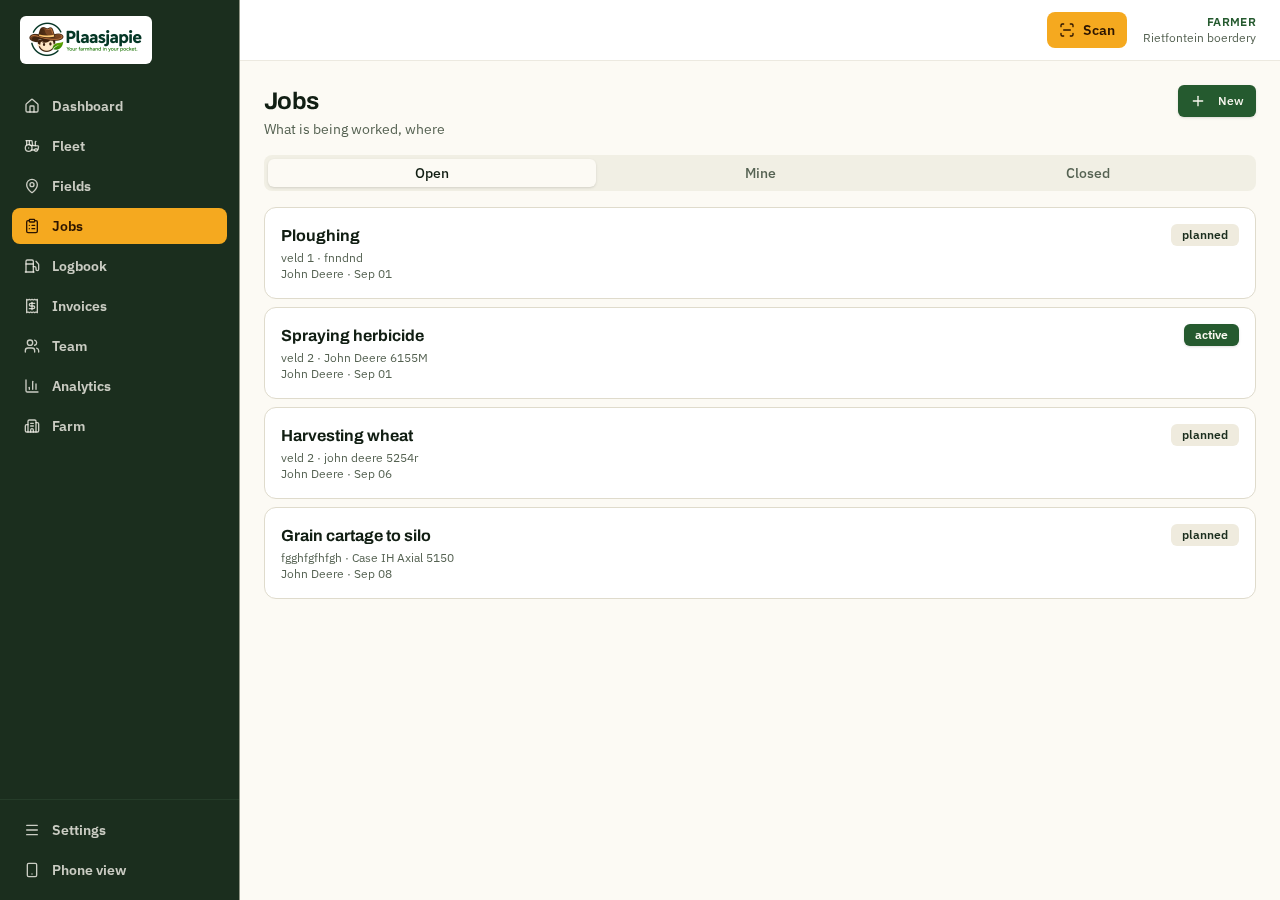
Jobs — assign work to machines and drivers
Plan the week by creating jobs such as ploughing, spraying or harvesting. Attach a machine, field and driver, then track status from planned to done.
- Create jobs with task, field, machine, driver and planned date.
- Move jobs through planned, active and completed statuses.
- Fuel logs inherit the job, field and driver automatically.
- Drivers see their assigned jobs on the mobile app.
Feature 06
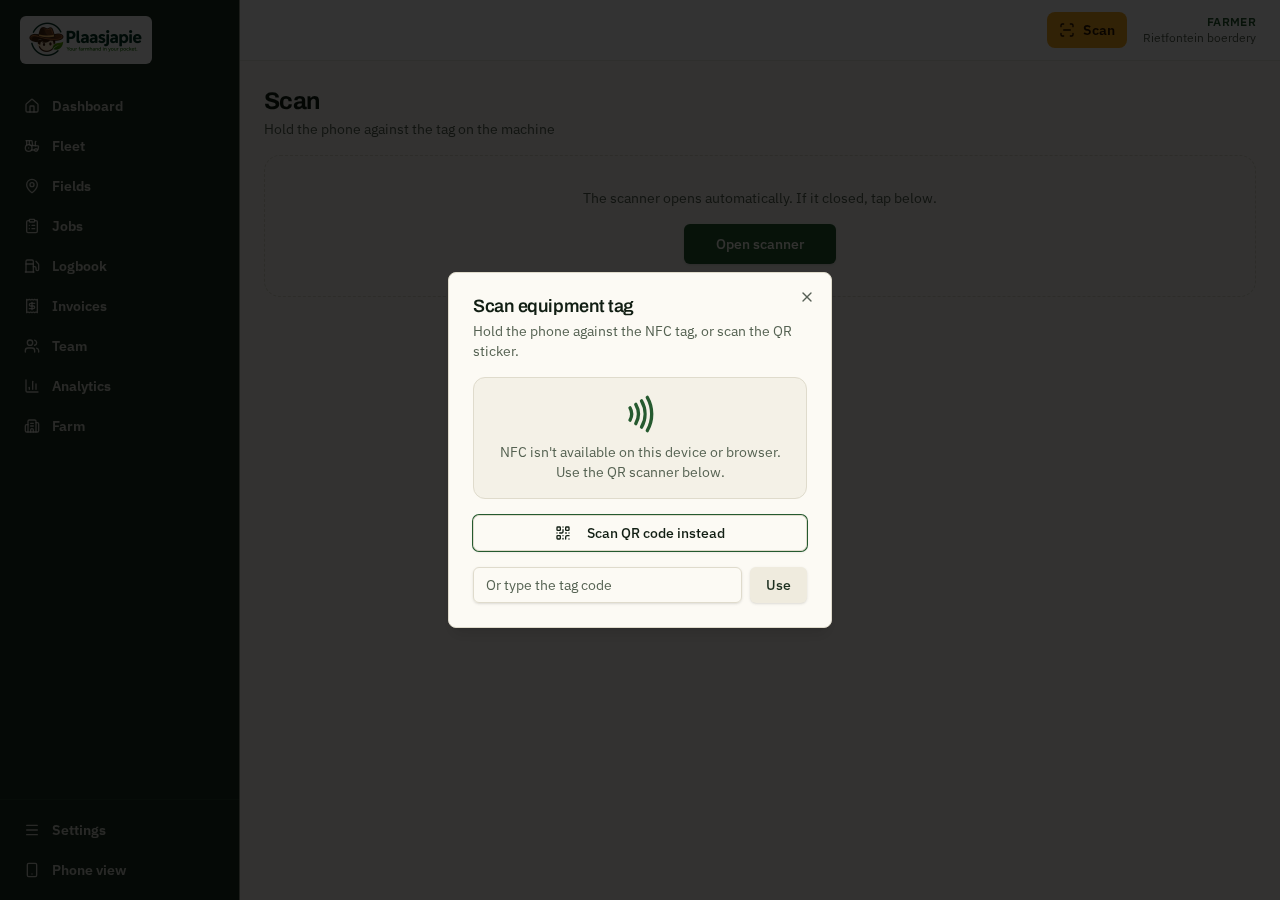
Scan — tap, scan or type the tag
Drivers log fuel and services in under a minute. Tap an NFC sticker, scan a QR code, or type the tag ID if the phone does not support scanning.
- Use Web NFC on supported Android devices for one-tap logging.
- Scan a QR code with the camera when NFC is unavailable.
- Fallback to a typed tag ID on older phones.
- The correct machine opens automatically — no menus in the dust.
Feature 07
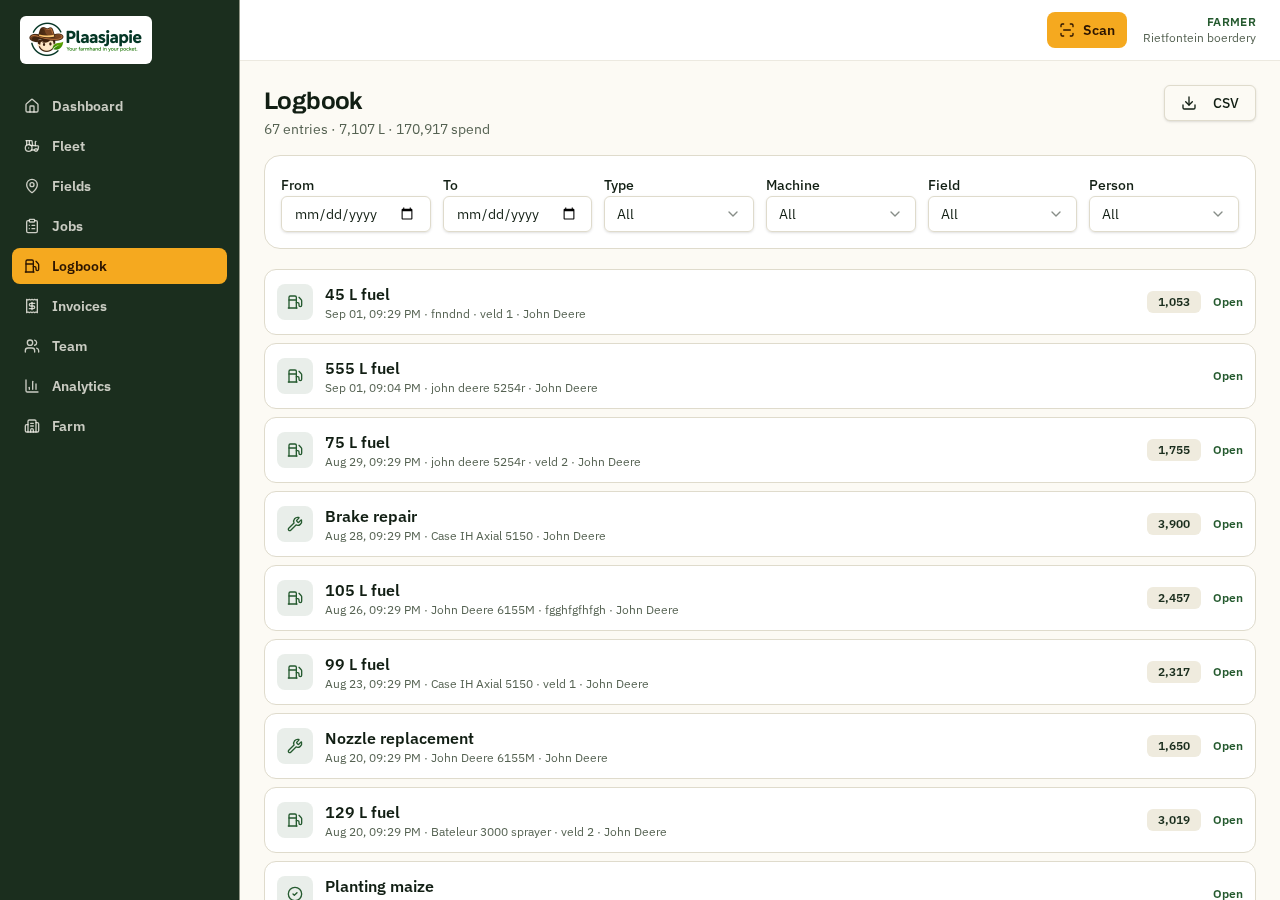
Logbook — every fill and service
A complete, filterable history of fuel, services and hours across the farm. Find any entry by machine, field, driver or date range.
- Filter logs by machine, field, driver and date.
- Review litres, engine hours, cost and notes per entry.
- See which job each log belongs to.
- Export the full logbook to CSV when needed.
Feature 08
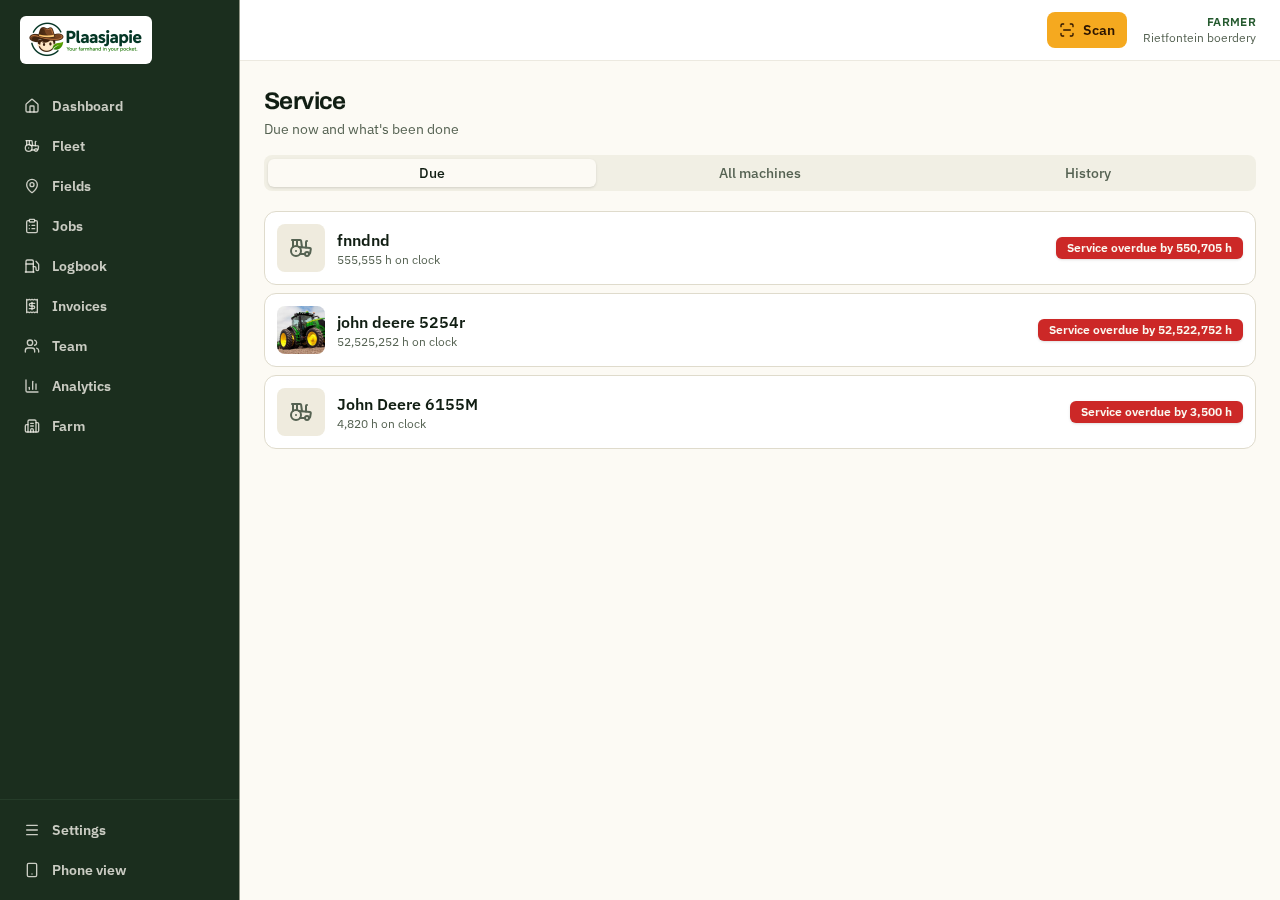
Service — stay ahead of breakdowns
Record services against engine hours and set the next due interval. Plaasjapie flags machines that are due or overdue before something breaks in season.
- Log a service with type, hours, cost and notes.
- Set the next service interval in engine hours or by date.
- Get alerts on the dashboard for overdue and upcoming services.
- Track mechanic work the same way as fuel fills.
Feature 09
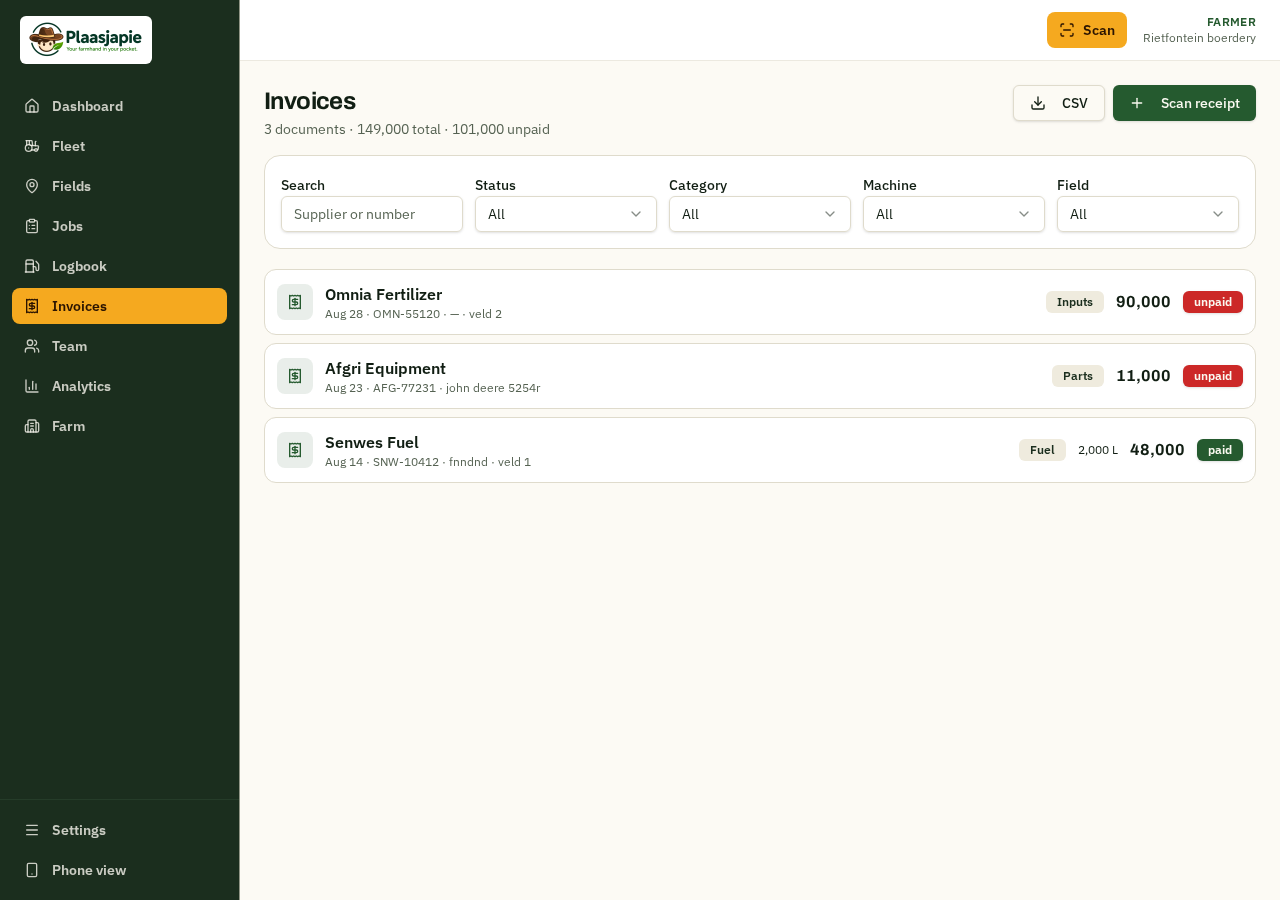
Invoices — scan, read and allocate
Photograph a diesel or parts invoice and Plaasjapie extracts the supplier, date, line items and totals. Review, correct and allocate the cost to a machine, field or person.
- Capture invoices with the camera or upload a file.
- AI reads supplier, dates, items and totals automatically.
- Correct any misread numbers before saving.
- Allocate costs to machines, fields or team members.
Feature 10
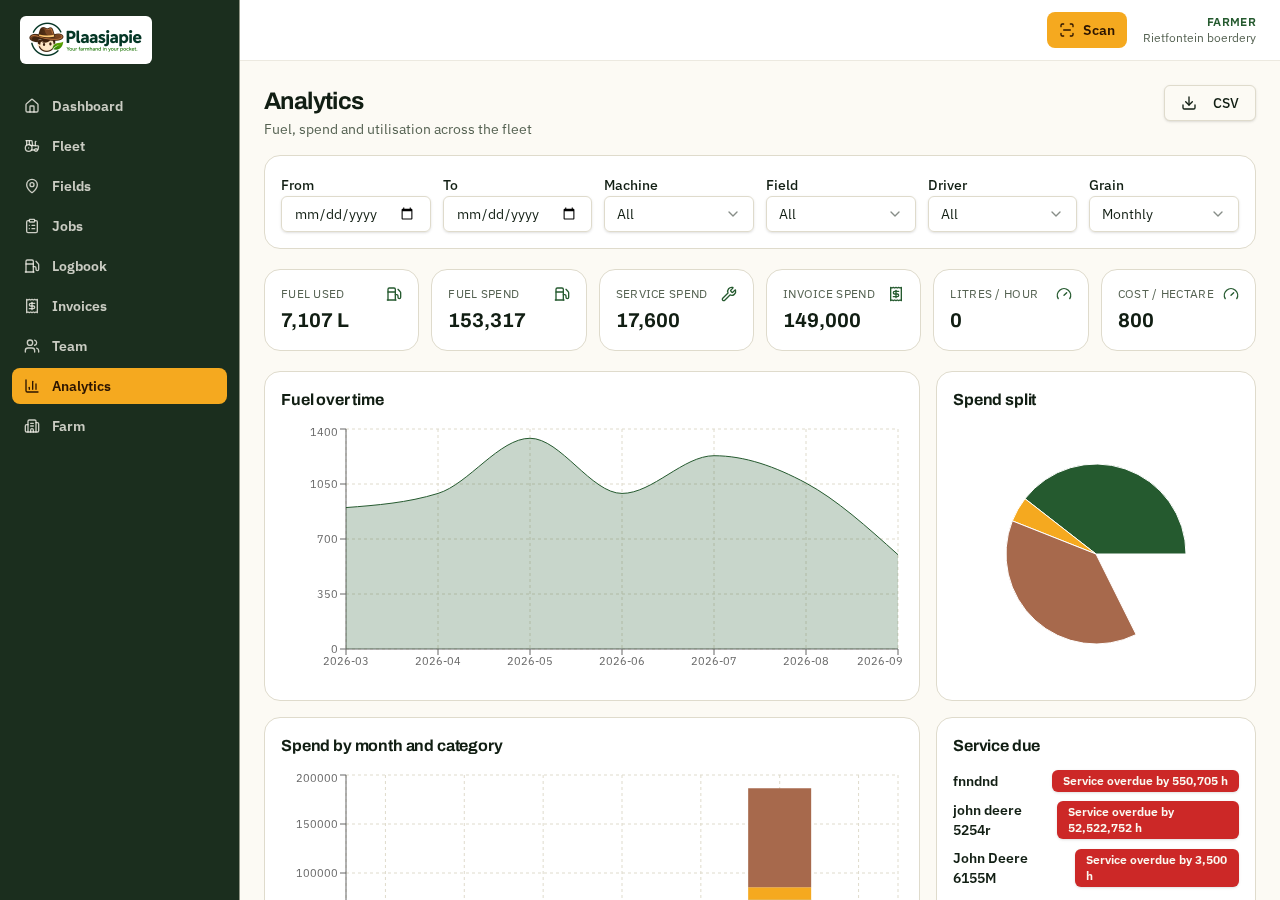
Analytics — know your cost per hectare
Turn logs into decisions. View fuel trends over time, spend splits, cost per hectare, driver efficiency and a field map shaded by fuel intensity.
- Fuel over time with date and machine filters.
- Spend split by category and month.
- Litres per hour, cost per hectare and driver efficiency.
- Interactive field heat map: click a land to filter everything to it.
Feature 11
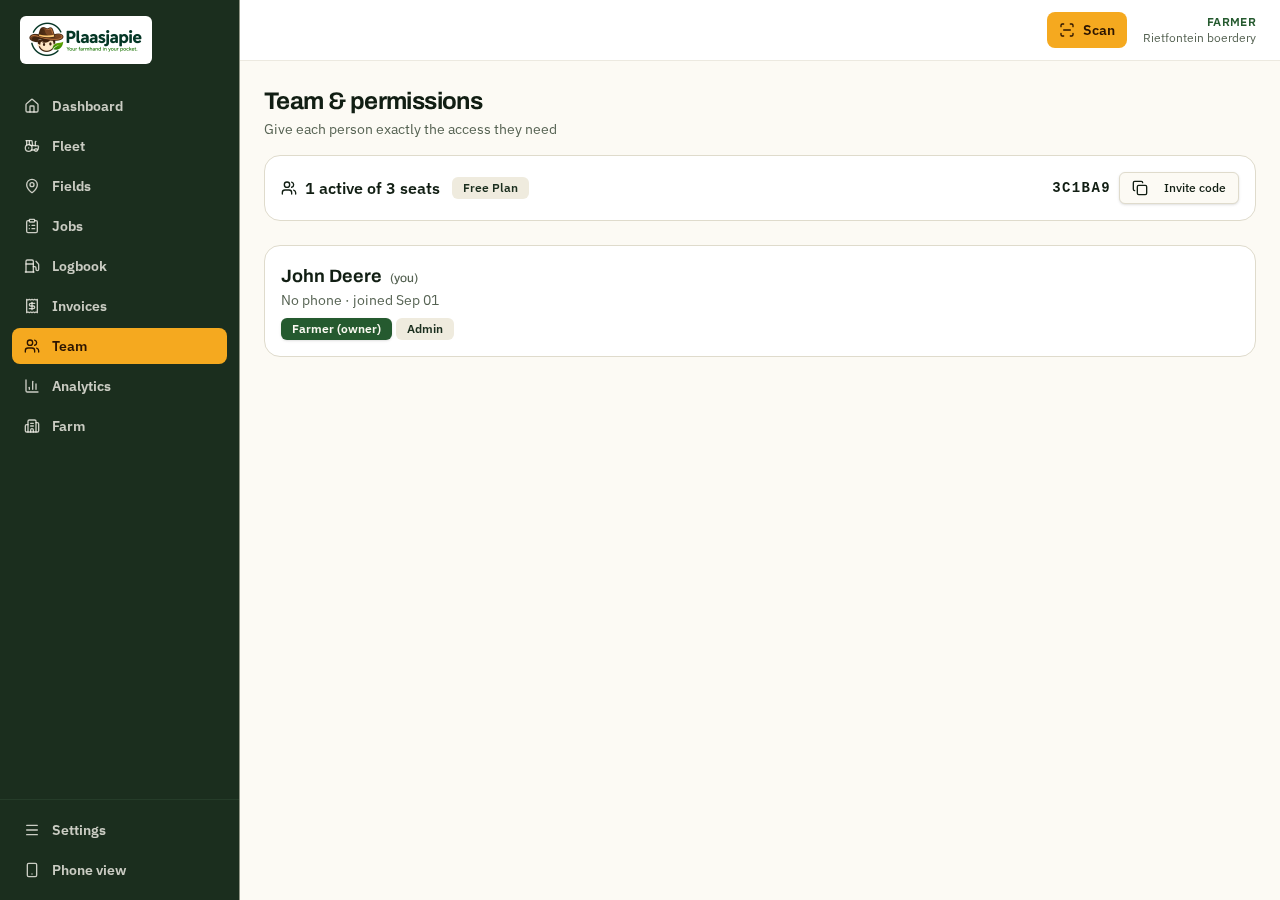
Team — roles and permissions
Invite drivers, mechanics and managers with the right level of access. The farmer controls who can log, view costs or manage subscriptions.
- Invite users by email and assign a role.
- Farmer / owner has full access to everything.
- Manager can assign jobs, add machines and review logs.
- Driver / mechanic sees only their jobs and the scan screen.
Feature 12
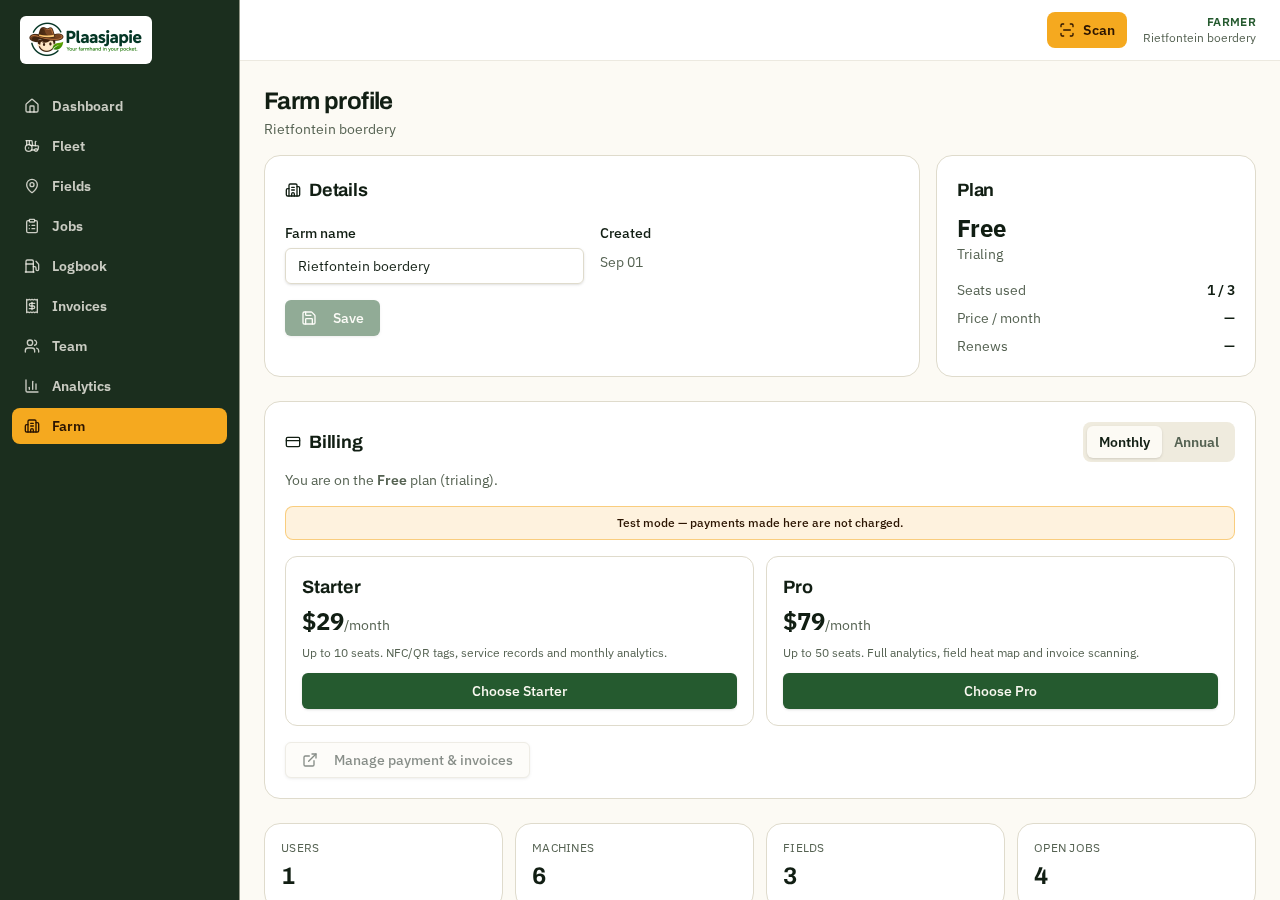
Farm profile — subscription and settings
Manage the farm name, join code, billing plan and payment details. Upgrade, downgrade or open the Stripe customer portal from one place.
- View current plan, seats and renewal date.
- One plan — Plaasjapie — with optional paid modules.
- Open the Stripe billing portal for invoices and payment methods.
- Copy the farm join code to add new team members.